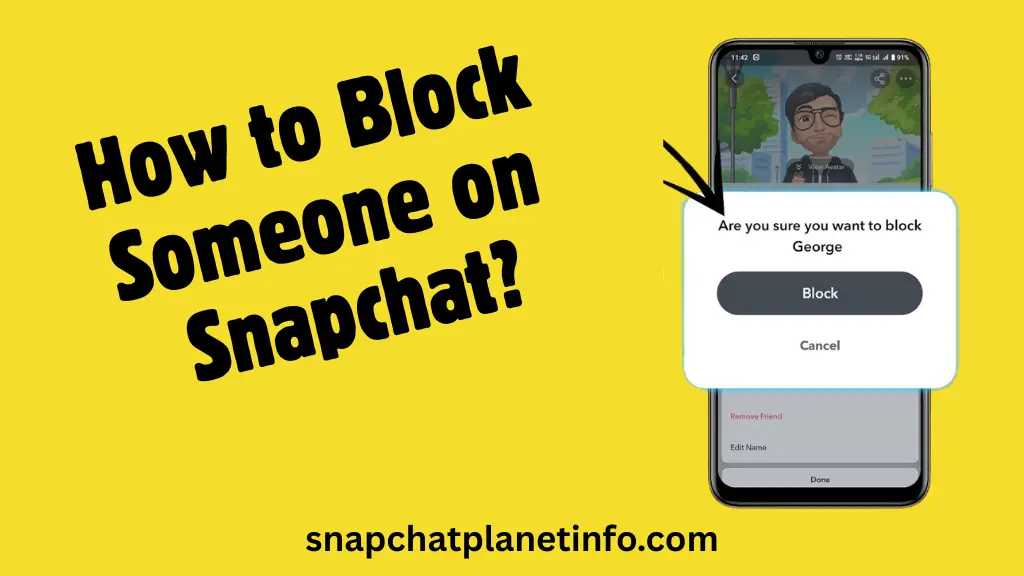
How to Block Someone on Snapchat (2025): All You Need to Know
Fed up with unnecessary people showing up on your Snapchat?. Whether it’s someone you just don’t want to be in touch with anymore or it’s spam, discomfort, random ads, annoying messages, or something not vibing, it’s totally okay to want some space. Snapchat also keeps things fun with disappearing messages, Bitmojis, creative filters, and the Snapchat Planet feature. But not every interaction is welcome, like threatening, harassing, etc. For this, the thing you need to know is how to block someone on Snapchat.
Blocking gives you full control over who can contact you, view your stories, or even see your presence on the app. It’s a quiet but powerful way to get rid of unwanted interactions. You can block someone, or even choose lighter options like how to unfriend someone on Snapchat without any awkward conversation. And with Snapchat’s updated tools in 2025, it’s quicker and easier than ever. So if you’re ready to clean up your Snapchat and take back control, this guide will show you exactly how to block people on Snapchat in 2025, step by step.
What Does Blocking Actually Mean?
Blocking someone on Snapchat completely cuts off their ability to interact with you. Blocking someone automatically unfriends them. They aren’t able to send you Snaps, view your stories, see your location on Snap Map and even can’t find your profile. It’s the most effective way to draw a hard boundary with a user without them getting a notification that they’ve been blocked.
Reasons to Block Someone
There are many reasons to block someone on Snapchat. Sometimes it’s for personal peace, a break from a friendship, a digital break, spamming, or unsafe and threatening behavior.
Some reasons are given below:
They’re Spamming You with Messages
Too many random Snaps, links, or messages? Spam can quickly ruin your Snapchat experience. Blocking stops the flood instantly.
You Don’t Want Them to See Your Stories
Stories are meant to be fun and personal. If someone is viewing your content and you’re not comfortable with it, blocking ensures they’re shut out.
They Make You Uncomfortable or Unsafe
Snapchat should be a safe space. If someone is being creepy, harassing, or threatening, don’t hesitate to block them immediately.
You Just Need a Digital Break
Sometimes, it’s not about drama; you just need space. Blocking someone can help reset boundaries while keeping your peace of mind intact.
Ways to Block Someone on Snapchat
There are six different ways to block someone on Snapchat. All six methods to block someone are discussed in the article. Everyone chooses the method that is easy for them. You can also block someone by one of your desired methods enlisted below:
Block from Your Friends List
This method is fast and easy when the person you want to block is in your friend list.
Steps:
- Open Snapchat and click on your Bitmoji present in the top right corner.
- Tap “My Friends.”
- Search for your friend’s user you desire to block.
- Tap and hold their name.
- Tap “Manage Friendship.”
- Select “Block” and confirm.
Block from the Search Box
Perfect for blocking users who aren’t on your friend list.
Steps:
- Tap the magnifying glass/search icon.
- Search the username of the person you want to block.
- Tap and hold their name in the results.
- Select “Manage Friendship.”
- Tap “Block” and confirm.
Block from the Chat Screen
If you’ve recently chatted with them, this is the quickest option.
Steps:
- Open your Chat screen by swiping towards the right.
- Click the person’s name and hold on it.
- Choose “Manage Friendship.”
- Hit “Block,” then confirm your choice.
Block from a story view
If you block someone from seeing your story on Snapchat, will they know? If you block someone on Snapchat, someone you don’t trust in your Story views, they will not be notified.
Steps:
- Open your story and swipe up to see viewers.
- Tap the user’s name and hold on to it for a while.
- Select “Manage Friendship.”
- Tap “Block,” then confirm.
From the profile
Best for when you’ve searched and tapped into someone’s profile.
Steps:
- Go to the person’s profile via chat, Snap Map, or search.
- In the top right corner, tap on the three dots.
- Choose “Block.”
- Confirm when prompted.
Block from the Snap Map
For users visible through the Snap Map.
Steps:
- open the Snap Map, minimize your screen
- Tap on the person’s Bitmoji or search for them.
- Tap their profile.
- Select “Block” by tapping on the three dots icon and “Confirm.“
Blocking Someone on Snapchat on PC
Snapchat is designed for Android, but you can still manage settings on PC, including blocking or even figuring out how to delete someone on Snapchat using the web version.
Blocking Someone on Snapchat on Iphone
How to block on Snapchat using your iPhone? It’s quick and easy, and once done, the person won’t be able to message you, see your Snaps, or find your profile anymore.
Follow these steps:
Steps to Report Before Blocking Someone
Blocking inappropriate content on Snapchat is powerful but if they’re violating Snapchat’s guidelines, reporting helps the platform too.
What Happens When You Block Someone?
Many users often ask, what happens when you block someone on Snapchat? The answer is that they lose access to your profile, chats, Snaps, and stories completely. Here are the complete details in a table
| EFFECTS | MEANING |
| ❌ Removed from Friends List | They’re removed from your friends list, and you’re removed from theirs. |
| 🔍 Can’t Find You | The saved pictures go away from Snapchat. All saved snaps also remove any like no conversation happened. |
| 📩 Messages Disappear | When you block someone, messages will delete permanently from their app. |
| 🖼️ Saved Snaps/Pictures Gone | The saved pictures go away from Snapchat. alla saved snaps also remove any like no conversation happened. |
| 👁️ No Story Access | They can’t view your stories, private stories, or custom story posts. |
| 🗺️ No Snap Map | Your Bitmoji disappears from the SnapMap on their end. You’re off the radar. |
| 🚫 cut off Communication | They can’t send you Snaps, chats, or video/audio calls. All contact is fully blocked. |
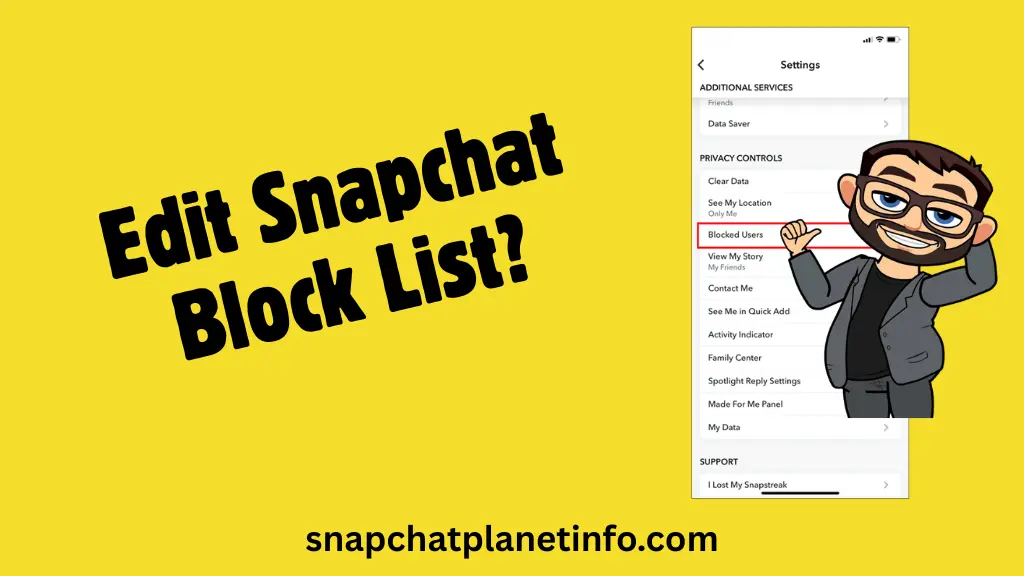
View and Edit Snapchat Block List
Want to review or manage your blocked users?
- Tap your Bitmoji > Settings (gear icon).
- Scroll down and tap “Blocked.”
- View your blocked person list. Click a person you want to unblock and select “Unblock only” and add friends if you change your mind.
Troubleshoot Issues When Trying to Block
If you’re facing an issue and can’t block someone on Snapchat. Whether the block button is not working or any other issue, you can fix them by following these steps:
Still stuck? Go to Snapchat Support and report the issue.
Unblocking of Accidentally Blocked Friend
If you blocked a friend you didn’t mean to block, then follow these steps to unblock your friend and share fun and memories with each other through snapchat.
- Tap your profile icon > Settings > Blocked.
- Find the name and tap it.
- Hit Unblock they’ll now be able to find and add you again.
Alternatives to Blocking (Mute, Privacy Controls)
Not every situation calls for blocking. If you want space, Snapchat offers alternatives to blocking, which keeps you in touch with others without a permanent cutoff. Try these now:
- Mute Stories or Notifications: Tap and hold the friend’s name > “Story Settings” > Mute.
- Restrict Who Can Contact You: Go to Settings > “Who Can…” to adjust who can message or view your stories.
- Remove as a Friend: A quieter option without the finality of a block. This is basically how to unadd someone on Snap, which means they’ll no longer be on your friends list but won’t be notified.
FAQs
Final Words
Blocking on Snapchat in 2025 is quick and effective. No matter if you do it through chat, map, profile, or stories, it results in peace of mind and control over your digital space. It’s not about being rude. It’s about protecting yourselves by setting boundaries. In a world that’s always online, you have every right to choose who gets access to you. Snapchat gives you the tools and you’re in control of how and when to block someone on Snapchat.
Think of it as drawing a healthy line, not burning a bridge. Because your comfort, safety, and headspace come first. Use it wisely, and don’t forget to report abuse where necessary.